
Use Thirdfy in Grok
Connect Thirdfy to Grok as a custom connector, sign in with your Thirdfy account, and ask your agent to read markets, check venues and preview trades in plain words. Or call Thirdfy from the xAI API with an agent key.
Talk to Grok, and your agent reads markets and trades for you. Add Thirdfy to Grok once as a custom connector and sign in with your Thirdfy account. Then ask in plain words: check your venues, find trending tokens, get a quote, or preview a swap. Thirdfy asks you to confirm every trade before it runs.
Building your own app on Grok models instead? Skip to For developers.
What you need
- A Grok account at grok.com. On Grok Business or Enterprise, a team admin may need to provision the connector first. Check xAI's connector docs for your plan.
- A Thirdfy account. You can create it while you connect.
- A browser that allows pop-ups from grok.com. Grok opens the Thirdfy sign-in in a pop-up.
- Funds in your agent's wallet, if you want to trade. You can read and preview without them.
1. Add Thirdfy to Grok
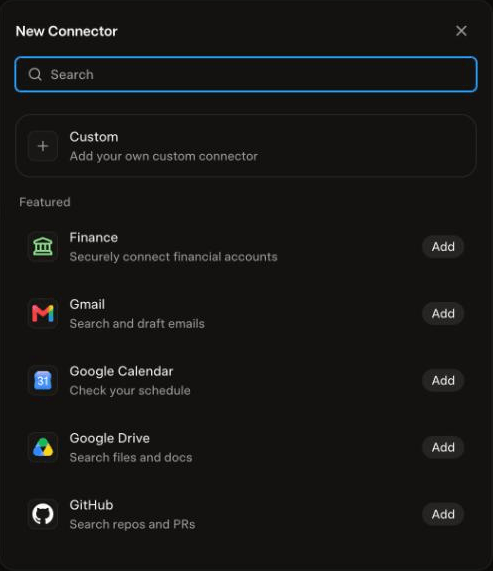
Open grok.com/connectors. Click New Connector, then Custom.
Name it Thirdfy, paste https://mcp.thirdfy.com/mcp as the Server URL, and click Add Connector.
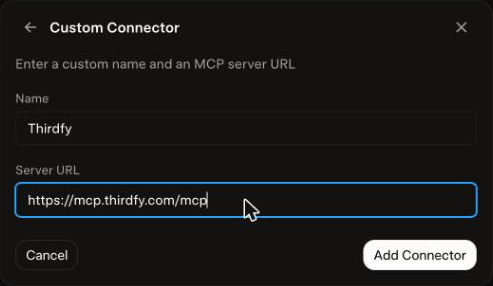
If these options look different, xAI may have moved them. Follow xAI's current connector docs.
2. Sign in and pick your agent
Grok opens the Thirdfy sign-in page in a pop-up and waits:
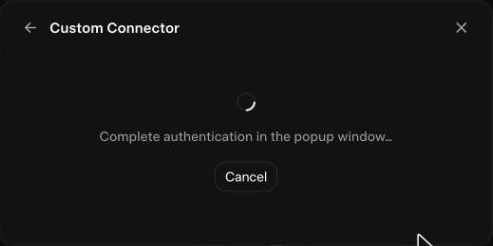
In the pop-up, sign in with email, Google or a wallet, the same way you do on thirdfy.com. Then:
- Pick your agent, or click Create a new agent and give it a name. Each agent has its own wallet. Grok acts for this one agent only.
- Tick Trade within your agent's limits if you want Grok to place trades. Without it Grok can only look, and it asks you to sign in again before its first trade.
- Keep Stay connected on if you don't want to sign in again for 30 days.
- Click Approve.
Read is always granted. It lets Grok see actions, balances, positions and venue readiness.
Thirdfy now shows under Connected on the connectors page:
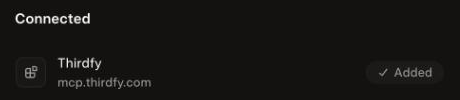
If Grok shows Connection failed, your browser probably blocked the pop-up. Allow pop-ups for grok.com and click Connect again.
3. Use Thirdfy in a chat
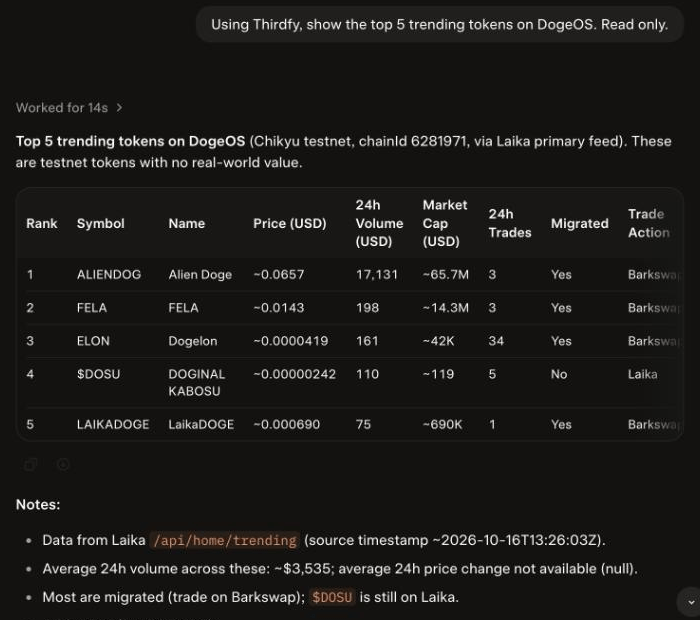
Start a new conversation and ask in plain words. Start your message with "Using Thirdfy" so Grok picks the right tools. Grok runs Thirdfy's read-only tools without asking first. Trades still ask you to confirm.
Check your venues
Grok tells you which venues your agent can use and, for each one, whether funding, credentials and approvals are in place. If a venue isn't ready, it says what's missing.
Get a quote
A quote reads the price only. Nothing is signed or sent.
Preview a trade
Grok previews the trade with Thirdfy. It shows the trade, its value, your limits and whether Thirdfy would run it. If something is missing, such as funds or gas, the preview says so before anything moves.
Preview, then confirm
When you ask Grok to trade, Thirdfy pauses and asks you to confirm first. Depending on what Grok supports, you see a confirmation form, or Grok shows you a summary of the trade and asks whether to go ahead. Nothing runs until you say yes. The confirmation is valid for 5 minutes.
If you say no, or don't answer, nothing is sent.
What happens before every trade
- You confirm it first. Thirdfy asks you to confirm each trade before it runs.
- Your agent's limits apply. Per-trade and daily limits, and the actions you allow, are checked on every trade. Anything outside them is refused.
- Venues are checked. Thirdfy refuses a venue order when the venue isn't ready, and says why.
To see or end Grok's access, open auth.thirdfy.com/connections and click Revoke.
If something goes wrong
| What you see | What to do |
|---|---|
| Connection failed after you click Connect | Allow pop-ups for grok.com and click Connect again |
| You can't add a custom connector | On Grok Business or Enterprise, ask your team admin. Otherwise check xAI's connector docs |
| Grok asks you to sign in again before a trade | You granted Read only. Sign in again and tick Trade |
A trade fails with insufficient_scope | Same cause. Reconnect and tick Trade |
| A venue isn't ready | Ask Grok what's missing. Fund the agent's wallet or finish venue setup in Thirdfy |
| An action is not allowed for this agent | Your agent has an action allowlist without that action. Allow it for the agent, or pick another agent |
| Grok doesn't use Thirdfy | Start your message with "Using Thirdfy", and check that the Thirdfy connector is connected at grok.com/connectors |
For developers
To call Thirdfy from your own app on Grok models, add it as a remote MCP tool in the xAI API. This path uses a Thirdfy agent API key (agent-...) instead of sign-in. Get a key with email onboarding (startEmailOnboarding, then completeEmailOnboarding, through any MCP client or https://mcp.thirdfy.com/mcp/public) or with the CLI:
Put the key in authorization. Thirdfy receives it as Authorization: Bearer agent-....
The xAI API runs MCP tool calls without asking you first. With an agent key, Thirdfy writes also run in one call. So keep control in two places: list only the tools the task needs in allowed_tools (allowed_tool_names in the xai-sdk), and set your agent's action allowlist and daily limit in Thirdfy. For the curl version and more, see Grok.