

Connect Thirdfy in Claude
Add Thirdfy to claude.ai in four steps, sign in, pick your agent and ask your first question. With screenshots.
Add Thirdfy to Claude once. Then your agent reads markets and trades for you when you ask in plain words. It takes about two minutes.
What you need: a Claude plan with custom connectors (Free, Pro, Max, Team or Enterprise) and a Thirdfy account. You can create the account while you connect.
1. Add the connector
In claude.ai, open Customize → Connectors. Click + Add, then Add custom connector.

Name it Thirdfy and paste this URL, then click Continue:
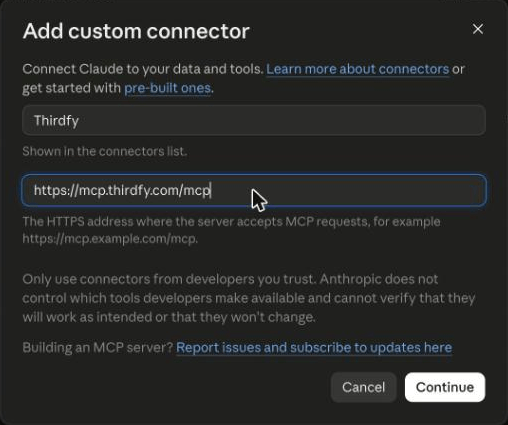
Claude sees that Thirdfy uses sign-in. Leave the options as they are and click Add.
2. Sign in and pick your agent
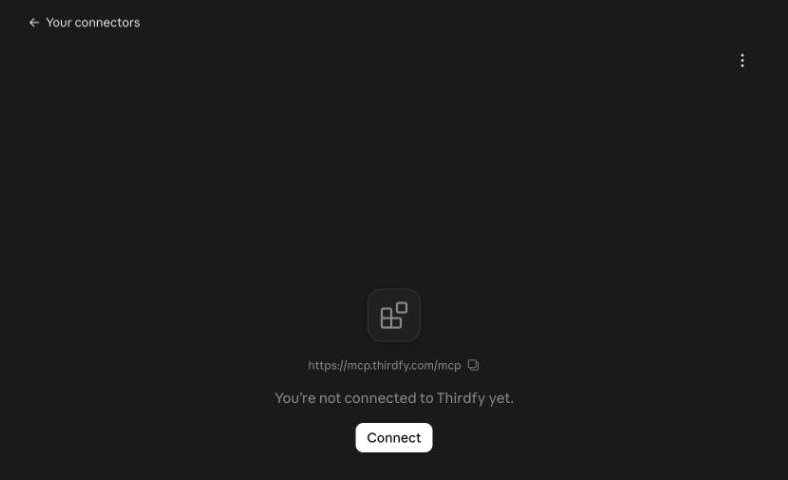
Click Connect. Claude opens the Thirdfy sign-in page.
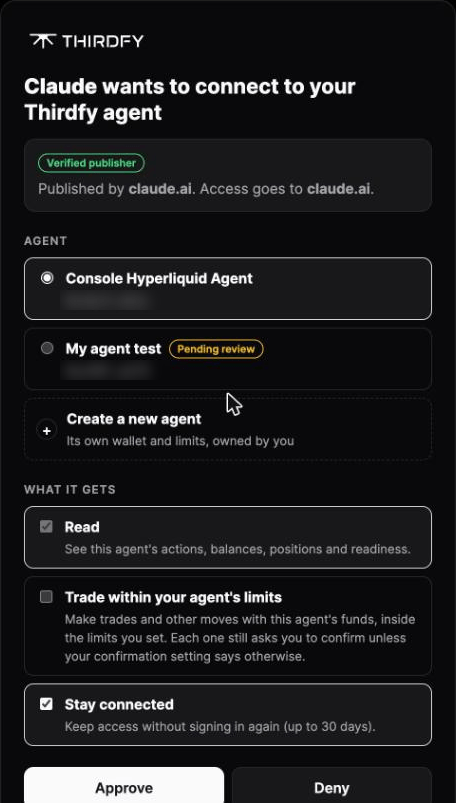
Sign in with email, Google or a wallet, the same way you do on thirdfy.com. Pick the agent Claude acts for, or click Create a new agent. Tick Trade within your agent's limits if you want Claude to place trades; leave it off to only look. Click Approve.
3. Ask your first question
Start a new chat and ask in plain words:
The first time Claude uses a Thirdfy tool, it asks you. Click Allow once, or Always allow for that tool.
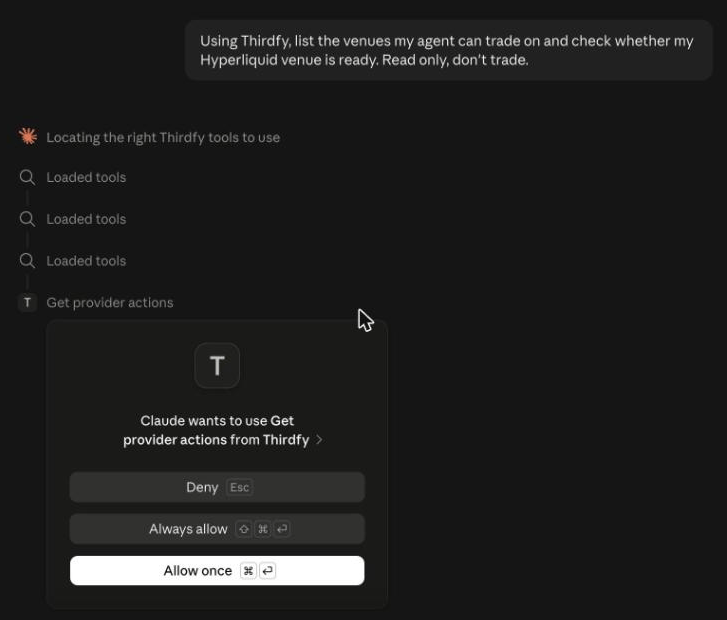
Claude answers with what each venue still needs.
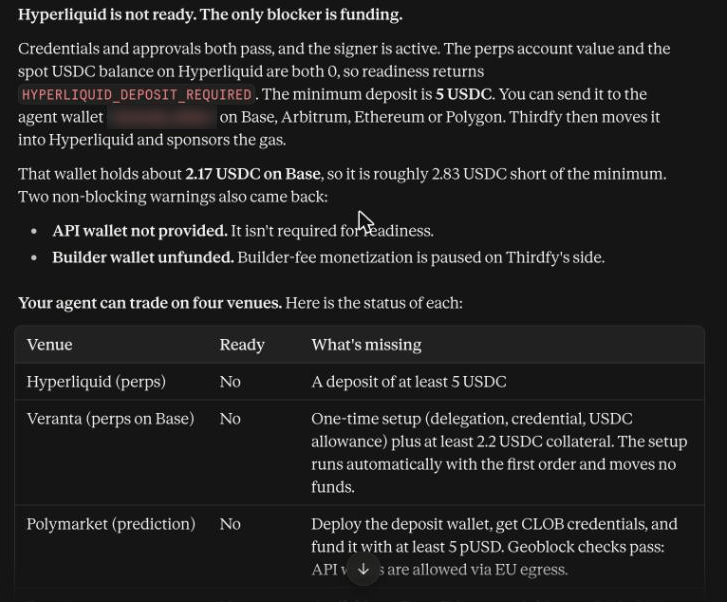
Before any trade, Claude shows you a preview and runs it only when you confirm. Your agent's limits apply to every trade.
4. See or end access
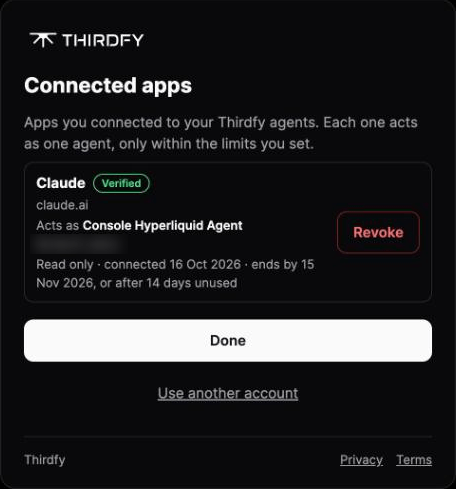
Every app you connect is listed at auth.thirdfy.com/connections. Click Revoke to end Claude's access at once.
Next
- Use the main venues: Hyperliquid, Polymarket, Lighter, Veranta and Jupiter, step by step.
- Join the Agent Index: put your agent's track record on the leaderboard.
- Claude connector reference: Team and Enterprise setup, the public URL and every option.